File
Transfer
Protocol

A bare-bones guide
to
FTP is a process that allows you to quickly transfer large numbers of files from your computer to another via the Internet. The FTP process requires two separate pieces of software: an FTP client on the sending end and an FTP server on the receiving end:
So the first thing you'll need to do in order to transfer your files is install an FTP client on your computer. (The FTP server is taken care of on our end.)
Most FTP clients will prompt you to supply at least five pieces of information:
1. The FTP server name: (ftp.homestead.com)
2. Your user I.D. (Your Homestead member name)
3. Your password (Your Homestead password)
4. The files you want to upload.
5. The directory to which you want to upload.
(Following is a series of screen captures of an actual upload using the FTP client Cute_FTP, which is among those we recommend for user friendliness. Please bear in mind that other clients' interfaces will differ slightly)
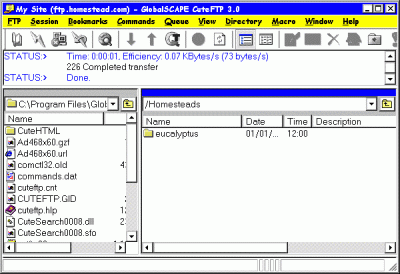
Having just entered the necessary information, you will be presented with an interface similar to the one at the left. The left-hand side of the box represents the local host (your computer) and the right-hand side represents the remote host -- your host, Homestead.
I have entered /Homesteads/eucalyptus/files as the upload destination, since the name of my site is eucalyptus, and I am uploading to the files subdirectory of my Homestead site ( You cannot upload to the "root" directory).
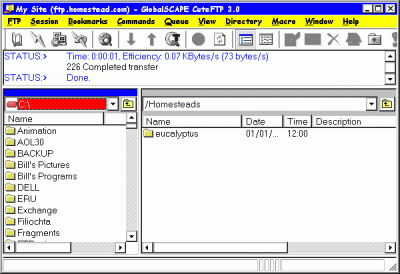
Next, I click on the dropdown menu above the local host column to display all the folders in my C:\ disk. I double-click on the file My_Pages, which is where I have placed my HTML pages to upload.
Note: The status window below the toolbar indicates the progress of the transfer. On some clients, the status window is located at the bottom of the interface.
(Important: If you are uploading HTML pages, don't forget to also upload their accompanying image, sound, and other files)
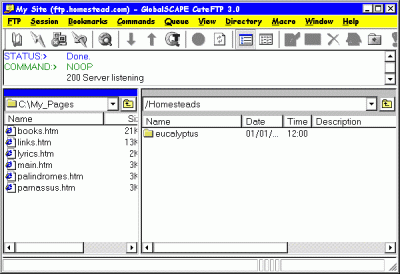
Double-clicking on the My_Pages folder displays its contents.
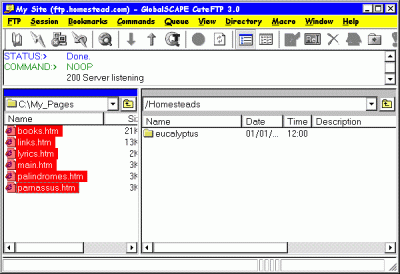
I have highlighted each of the files I intend to upload by holding down the Ctrl key as I click on them (Tip: If you have a large number of files you want to upload, clicking on the first file and then clicking on the last while depressing the Ctrl key will upload all the files in between).
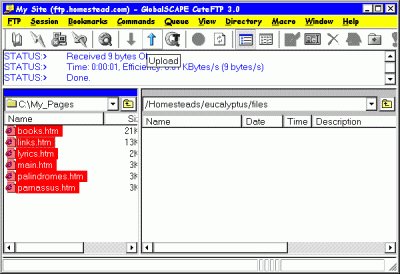
Now I'm all set to click the Upload button.
Note how the heading above the remote host column has changed to indicate the subdirectory destination.
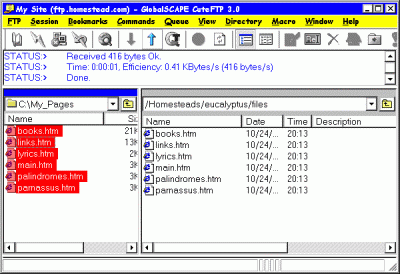
Upload complete!
A word of caution: If the FTP server tries to "open a data connection" and the upload hangs up, the likely cause is that your machine is attempting to connect from behind a firewall. Since we don't support
passive mode uploads, please try FTP from elsewhere (such as from home).
passive mode uploads, please try FTP from elsewhere (such as from home).
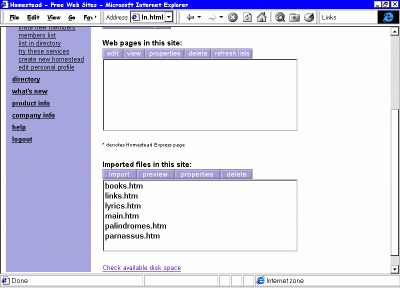
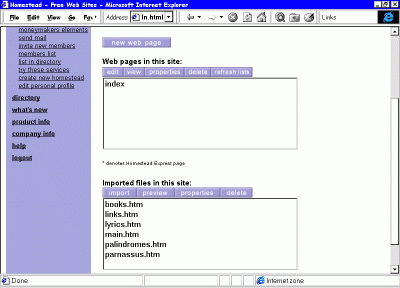
Once your FTP upload is complete, you can log into your Homestead Web site to check the results. Note once again that all uploaded files, be they pages, image files or sound files, reside in the files subdirectory. Only pages created with the Homestead SiteBuilder reside in the "root", or pages directory.
This is why it is necessary for you to create an opening page in the SiteBuilder, and link your imported pages to it.
We suggest you name your opening page
index, since the browser automatically recognizes pages titled index as the default page of your site. Your URL will be shortened in the process (as in this case) from:
index, since the browser automatically recognizes pages titled index as the default page of your site. Your URL will be shortened in the process (as in this case) from:
www.homestead.com/eucalyptus/index.html
to this:
www.homestead.com/eucalyptus